Manage Projects
Creating a Project
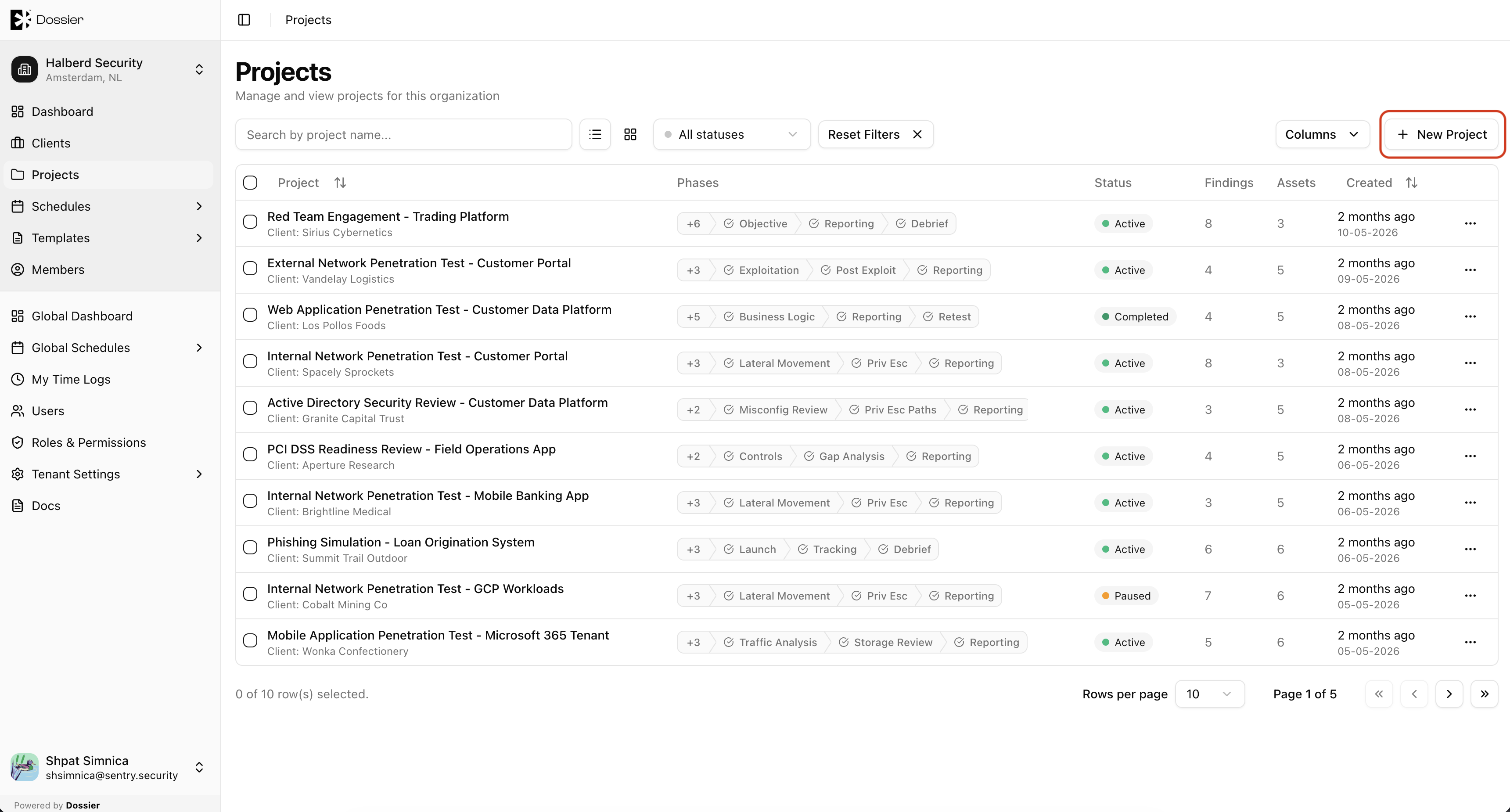
Step 1: Navigate to the Projects section
You can create a project from:
- The Projects list in the sidebar (
/org/:id/projects) - The Projects tab within a client
Click New Project.
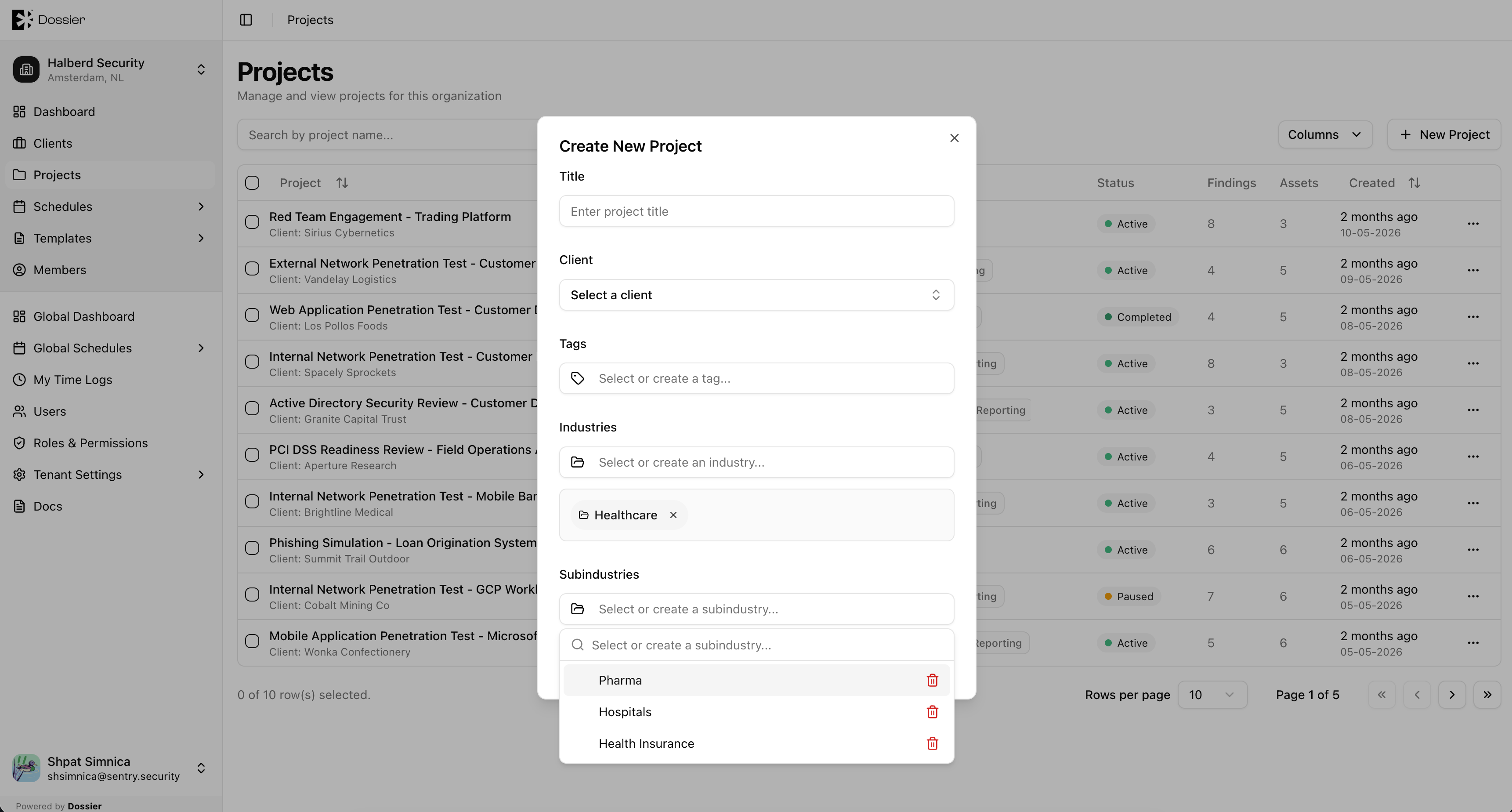
Step 2: Enter project details
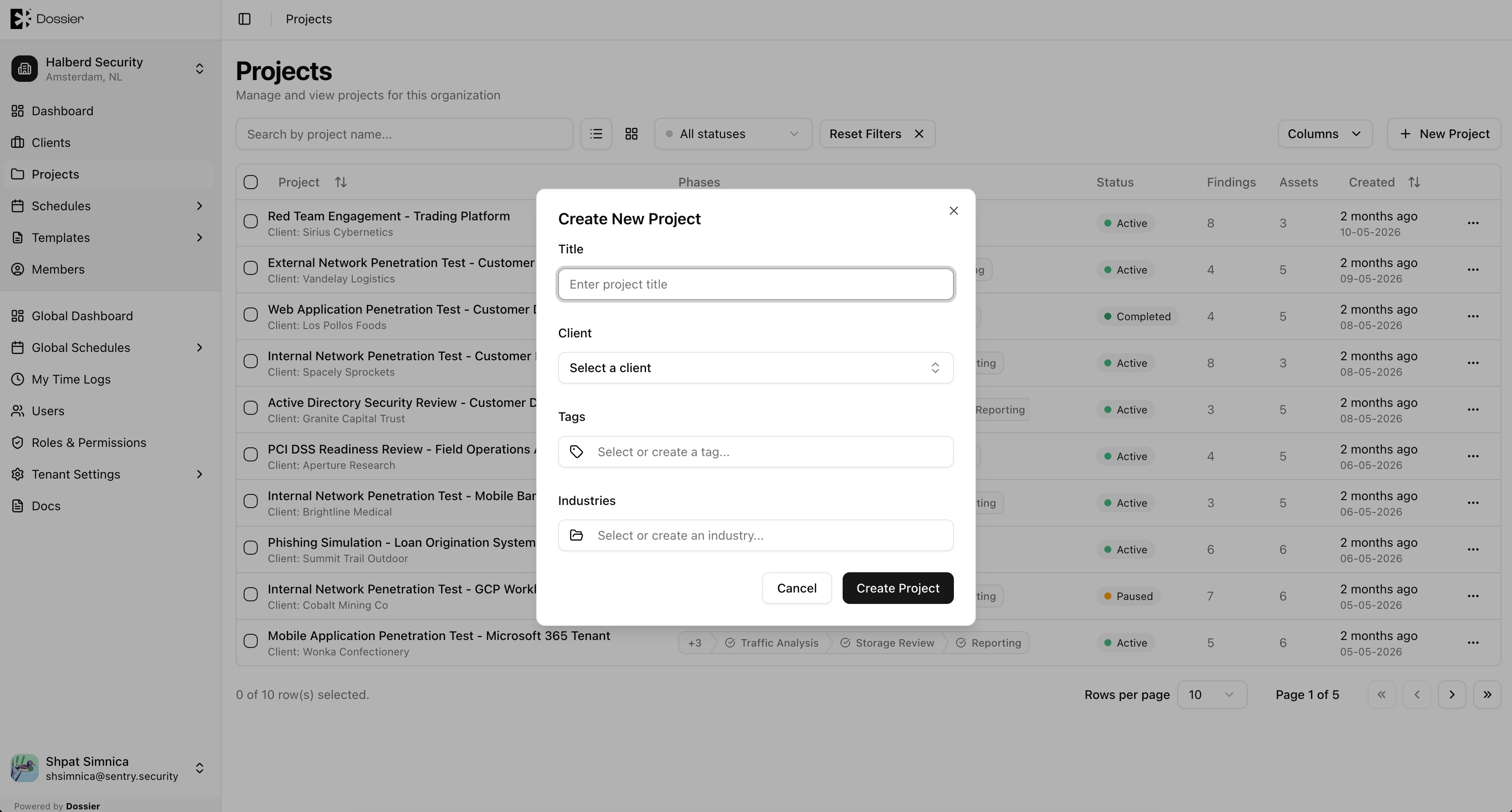
Fill in the required fields:
| Field | Required | Description |
|---|---|---|
| Title | Yes | The project name. |
| Client | Yes | The client this project belongs to (pre-filled if creating from a client context). |
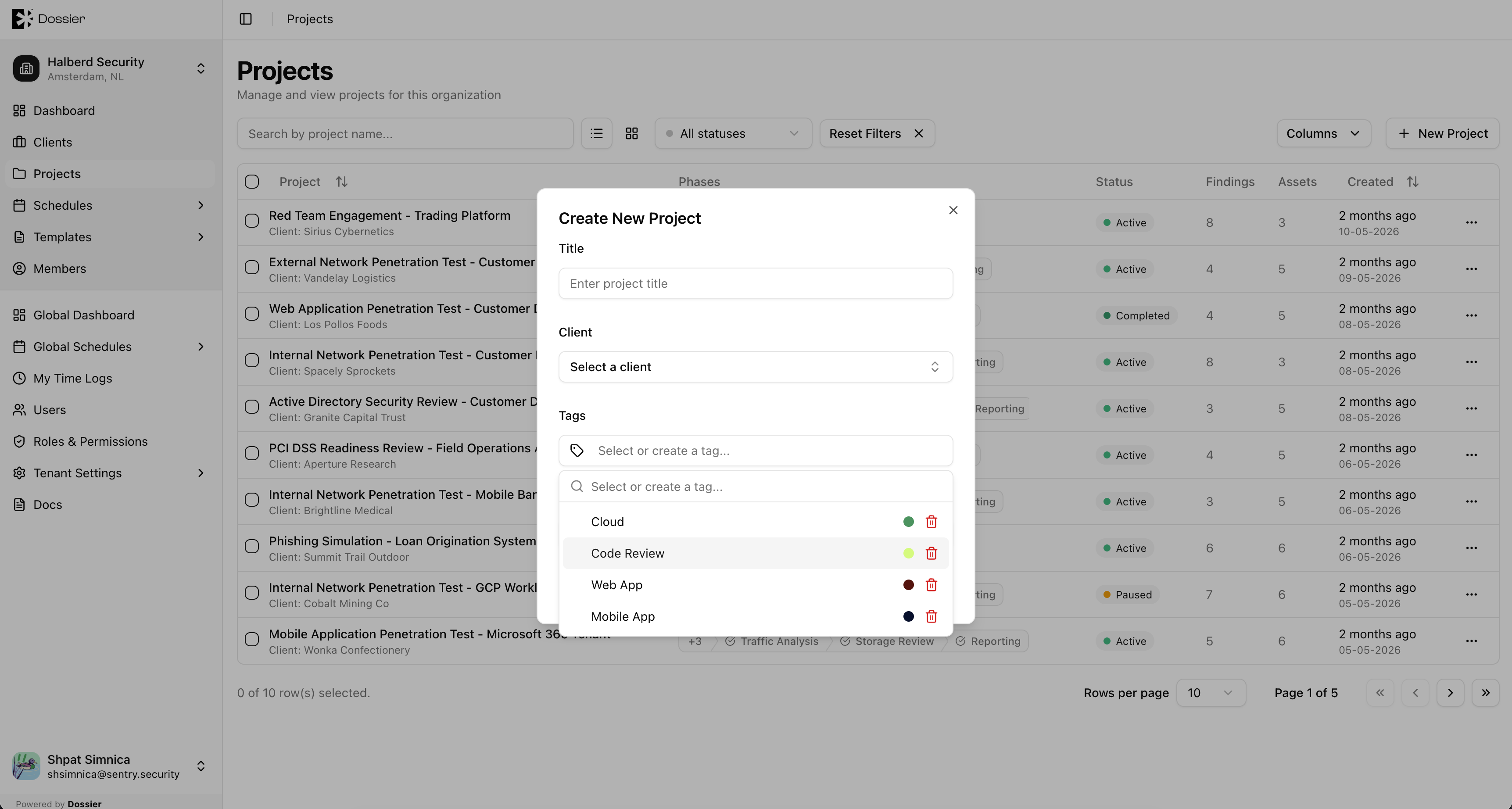
| Tags | No | Labels for categorizing the project. Type to search or press Enter to create a new tag. |
| Industry | No | Select an industry from the dropdown. |
| Sub-industry | No | Appears after selecting an industry; choose a more specific classification. |
Step 3: Click Create
The project is created in Draft status. You are redirected to the project detail page.
Updating a Project
Step 1: Open the project
From the Projects list or client Projects tab, click the project row.
Step 2: Open project settings
Use either:
- The Settings option in the section navigation (opens the edit dialog), or
- The Details tab
Step 3: Update and save
Modify the title, tags or industries. Click Save.
Deleting a Project
Step 1: Go to project Details
Navigate to the project's Details tab.
Step 2: Click Delete
A confirmation dialog warns that all findings, assets, reports, forms, and schedules will be permanently deleted.
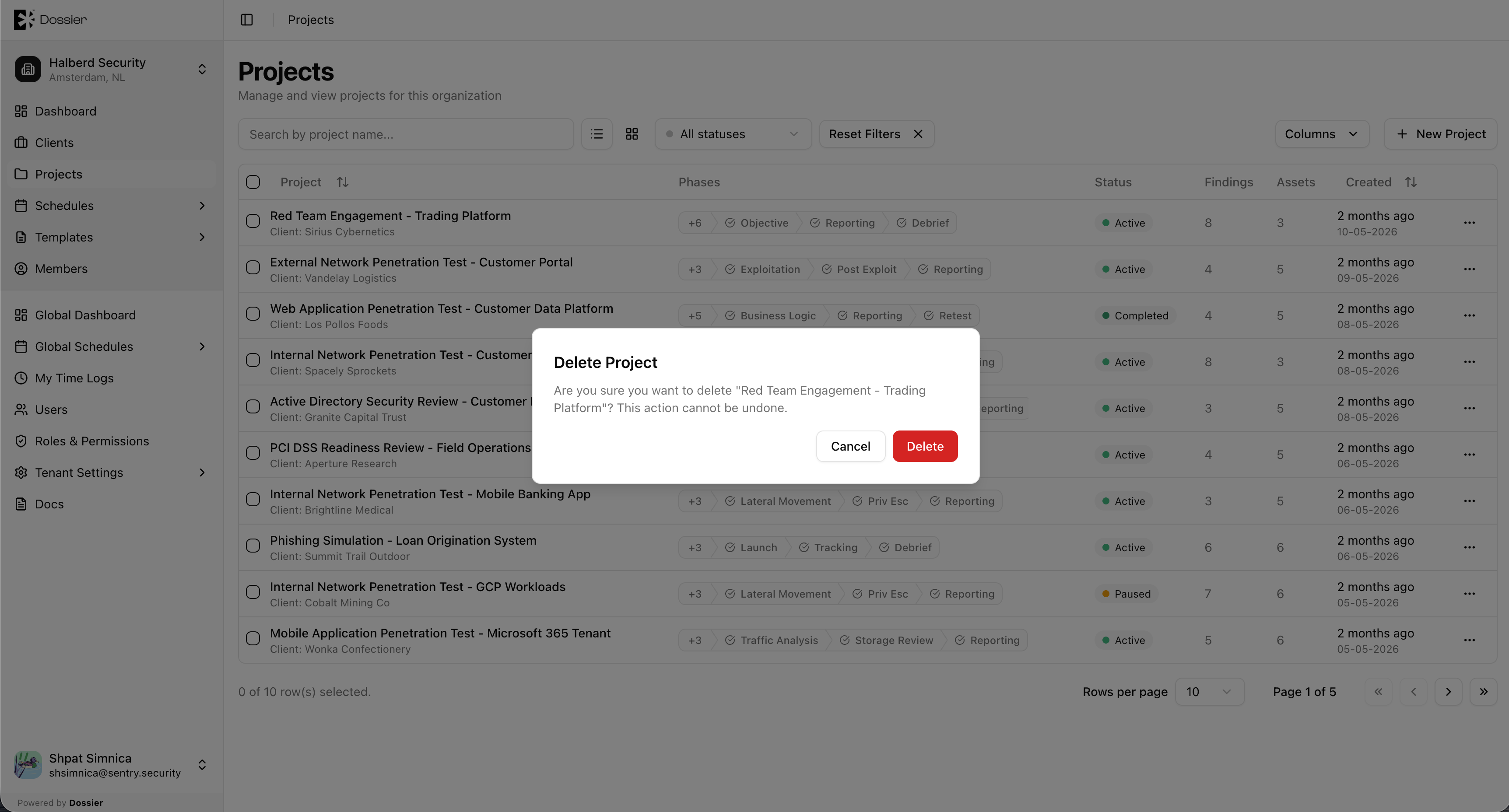
Step 3: Confirm
Click Yes to permanently delete the project.
danger
Deleting a project permanently removes all findings, assets, reports, forms, phases, and the project overview. This action cannot be undone.
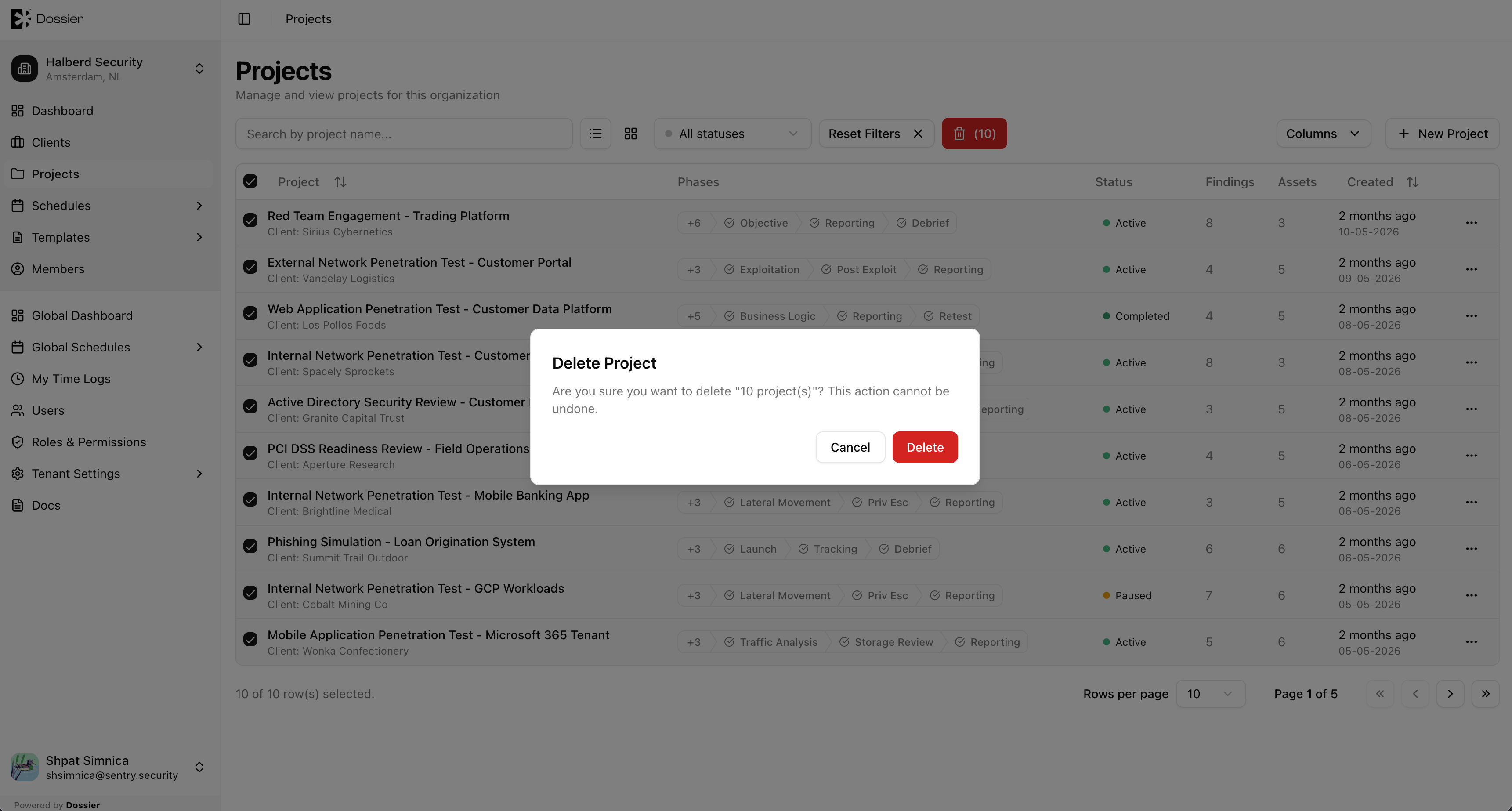
Bulk Delete
From the Projects list, select multiple projects using checkboxes, then click the bulk delete button.